8. Hearing and speech access
Status: draft
Chapter goal
Some information in an app arrives only as sound, and some actions accept only voice. Both exclude users: people who are deaf or hard of hearing, people with speech disabilities, and anyone in a loud train or a quiet library. This chapter covers media captions, sound-only feedback, voice-only input and Voice Control names.
The screen
The Leaf demo: a 30-second "How to brew tea" video, a payment confirmation, a checkout with three Edit buttons, and a support screen.
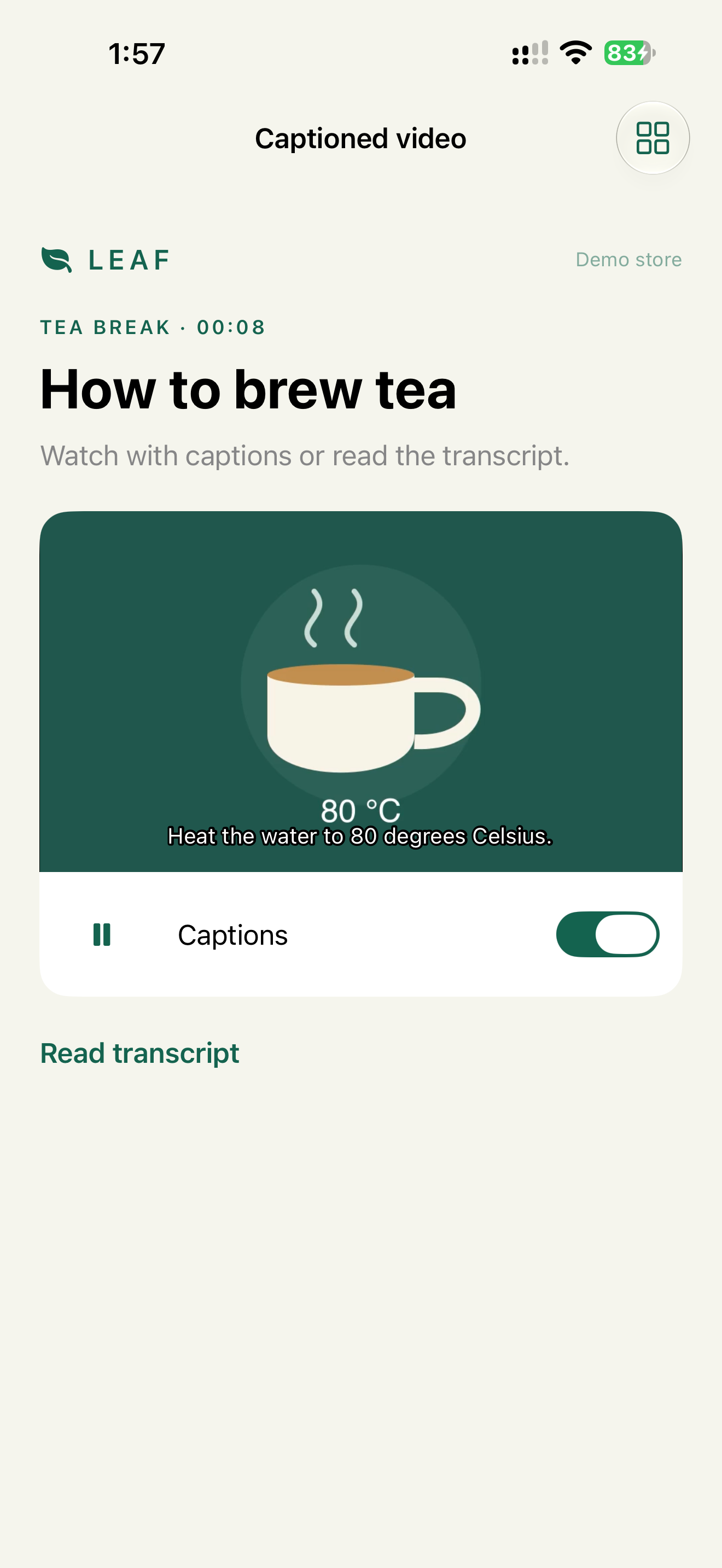
- The video explains the water temperature by voice. Without sound, the key fact, 80 °C, is lost.
- Payment success is a chime. With sound off, the user doesn't know whether to wait or tap again.
- Checkout has three buttons named "Edit". Voice Control can't tell them apart.
- Support offers only a phone number.
Two kinds of captions
These are often confused:
| Feature | What it shows | Who controls it |
|---|---|---|
| Media captions (Subtitles & Captioning) | Speech and sounds in a video | The app provides the caption track, the system styles it |
| Live Captions | Real-time transcription of any audio on the device | The system. Not available in every language and region |
| VoiceOver Caption Panel | What VoiceOver is saying | VoiceOver settings, Chapter 5 |
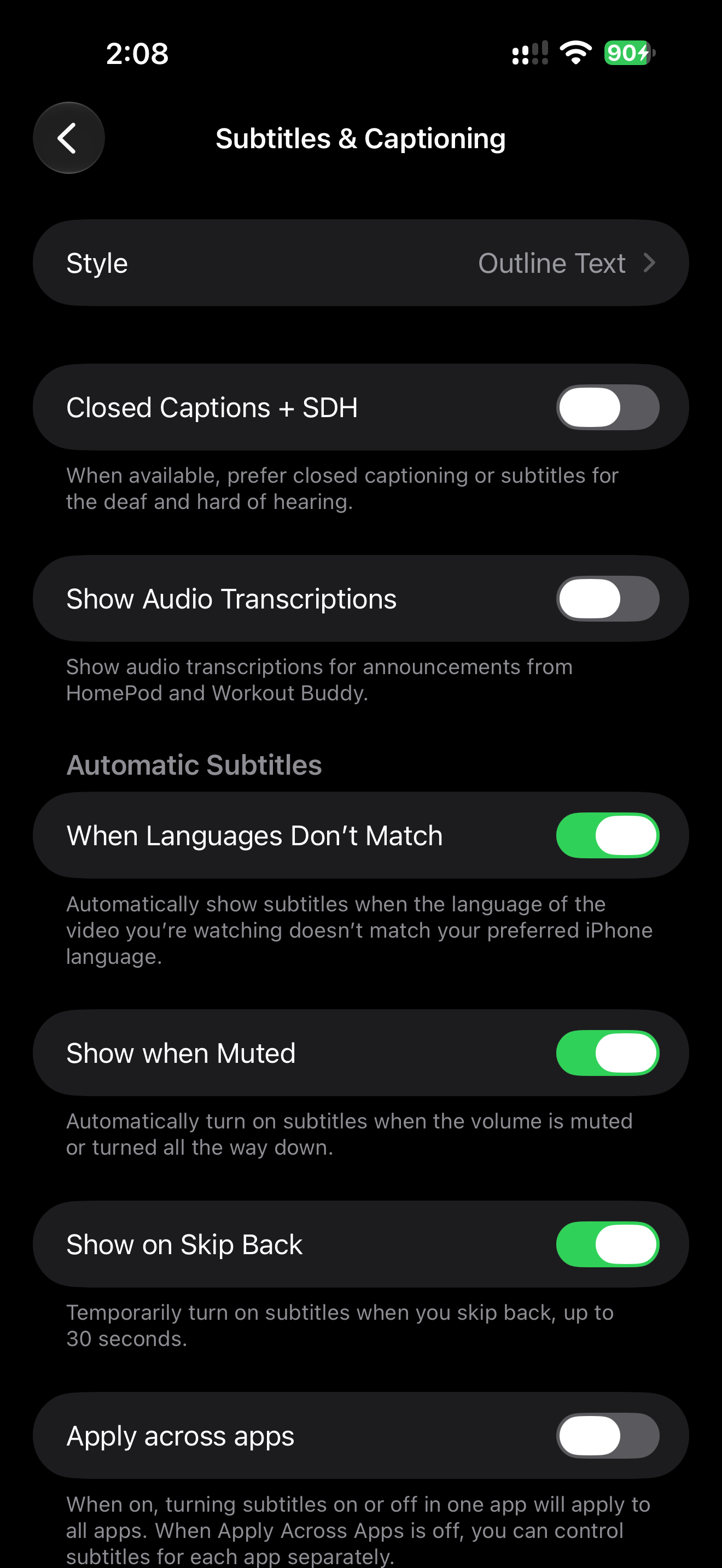
Live Captions don't replace media captions. They are machine transcription: they make mistakes on names and numbers, they aren't available everywhere, and the user has to turn them on.
Constraints
- Sound never carries information alone. Every sound has a visual or text equivalent on screen.
- Voice is never the only input. Every voice feature has a touch or text path.
- Captions come from a caption track, not text drawn over the video. Only a real track respects the user's caption style settings.
Decision 1: Video ships with a caption track
Verdict: every video with meaningful speech has closed captions in the media itself, and the player shows them according to the system setting.
Why: AVPlayerViewController and SwiftUI VideoPlayer show legible tracks (WebVTT in HLS, or embedded CEA-608/708 and tx3g) automatically when Closed Captions + SDH is on. The system applies the user's style: font, size, background. Text drawn over the video does neither.
The demo's video has an English mov_text (tx3g) track inside the mp4. AVPlayerViewController draws it, and the in-app Captions switch selects or deselects it:
For a custom player, read the style from Media Accessibility:
import MediaAccessibility

let wantsCaptions = MACaptionAppearanceGetDisplayType(.user) == .alwaysOn
Then select the legible track:
if let group = try await asset.loadMediaSelectionGroup(for: .legible) {
    let options = AVMediaSelectionGroup.mediaSelectionOptions(
        from: group.options, filteredAndSortedAccordingToPreferredLanguages: Locale.preferredLanguages)
    playerItem.select(options.first, in: group)
}
A manual selection only sticks with player.appliesMediaSelectionCriteriaAutomatically = false. Otherwise the player re-applies its automatic choice from the system setting and drops yours. In the demo, the subtitle didn't appear on the device until this line was added. Set it only when the user made an explicit choice in the app, like the Captions switch. Without an in-app choice, leave automatic selection on so the system setting decides.
SDH captions (Subtitles for the Deaf and Hard of hearing) also describe sounds: "[timer beeps]", "[music]". If a sound matters to the task, it goes in the captions.
Check: Closed Captions + SDH on, open the video. Captions appear without an in-app toggle, in the style set in Settings.
Decision 2: Long instructional video gets a transcript
Verdict: a "Read transcript" button next to every instructional video.
Button("Read transcript") { showTranscript.toggle() }
if showTranscript {
    Text("Heat the water to 80 degrees Celsius. Steep for 3 minutes.")
}
Why: captions move at the speed of the video. A transcript can be read at any speed, searched, copied, translated and read by VoiceOver or a braille display. For a recipe or a setup guide, the transcript is often more useful than the video.
Check: every fact needed to do the task (80 °C, 3 minutes) is in the transcript.
Decision 3: Sounds have a visual twin
Verdict: every sound the app plays has a persistent visual state. A haptic is a supplement, not a replacement.
Payment success in the demo:
paid = true                                        // screen shows "Paid · Order 42"
AccessibilityNotification.Announcement("Payment complete. Order 42 is confirmed.").post()
UINotificationFeedbackGenerator().notificationOccurred(.success)
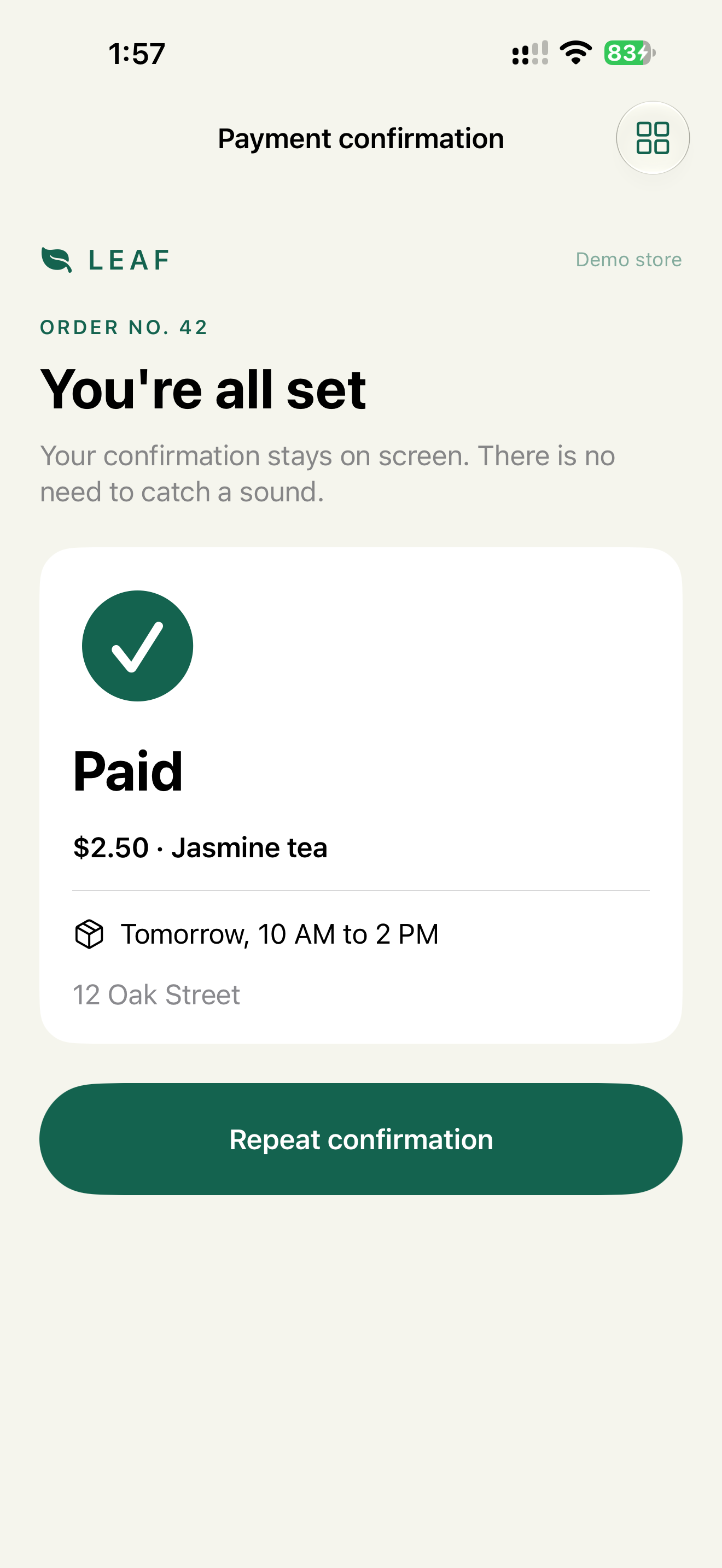
Why haptics alone don't work: not every device has a Taptic Engine (iPad doesn't), the user may turn System Haptics off, and a short vibration can't tell "paid" from "failed". The text can.
Check: sound off and System Haptics off. The user can tell success from failure on every action that has a sound.
Decision 4: Voice Control names are visible and unique
Verdict: each control's visible text is its name, and no two controls on one screen share a name.
Button("Edit address") { editAddress() }
Button("Edit payment") { editPayment() }
Button("Edit time") { editTime() }
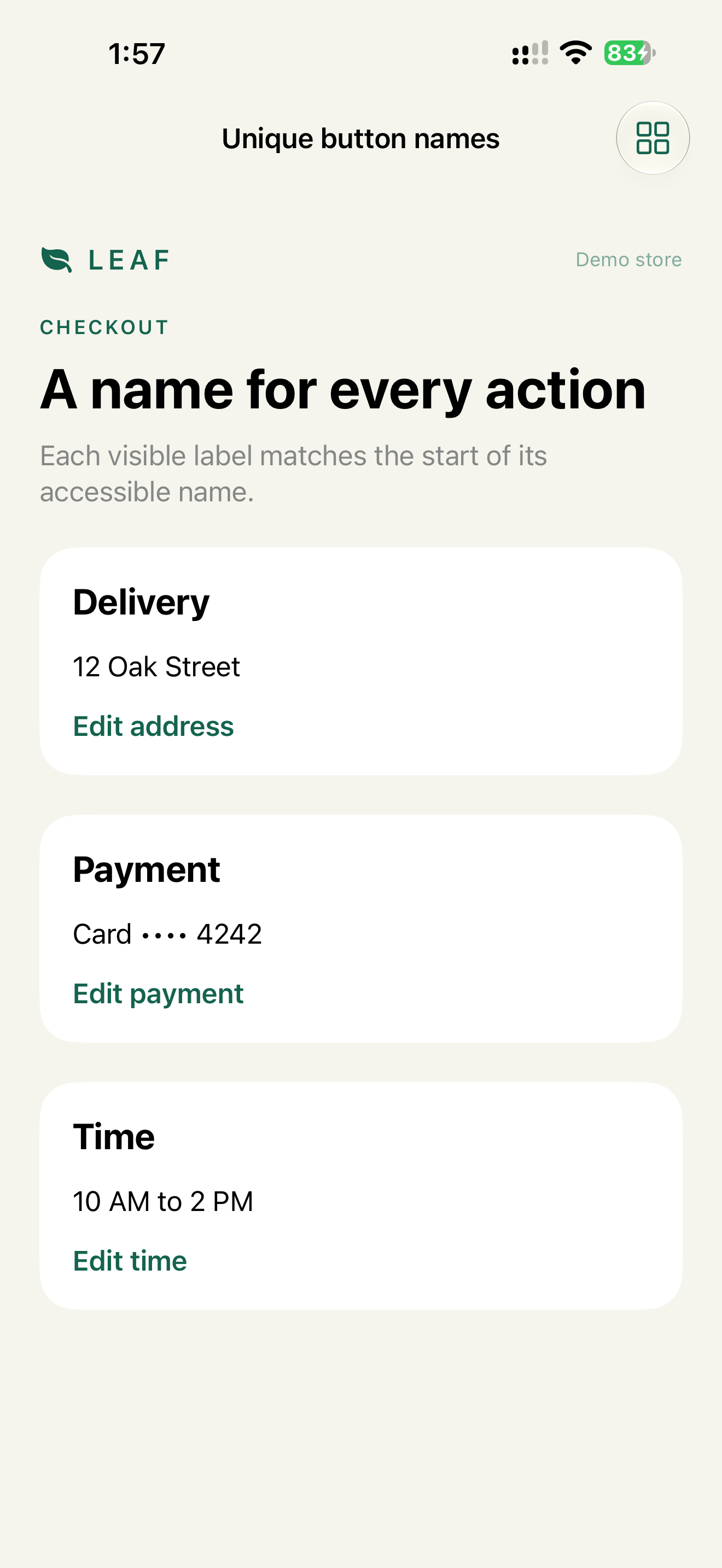
Why: Voice Control users say what they see: "Tap Edit payment". With three "Edit" buttons, Voice Control shows numbers and the user needs two commands instead of one.
When the accessible label must differ from the visible text, the visible text goes first in the label, or into accessibilityInputLabels:
Button("Add to cart") { add() }
    .accessibilityLabel("Add jasmine tea to cart")
    .accessibilityInputLabels(["Add to cart", "Add jasmine tea"])
The Leaf demo's product button uses exactly this: visible "Add to cart", label "Add jasmine tea to cart", both phrases in the input labels (Chapter 5).
Icon-only buttons need a short name that's easy to say: "Cart", not "Shopping cart button with item count badge".
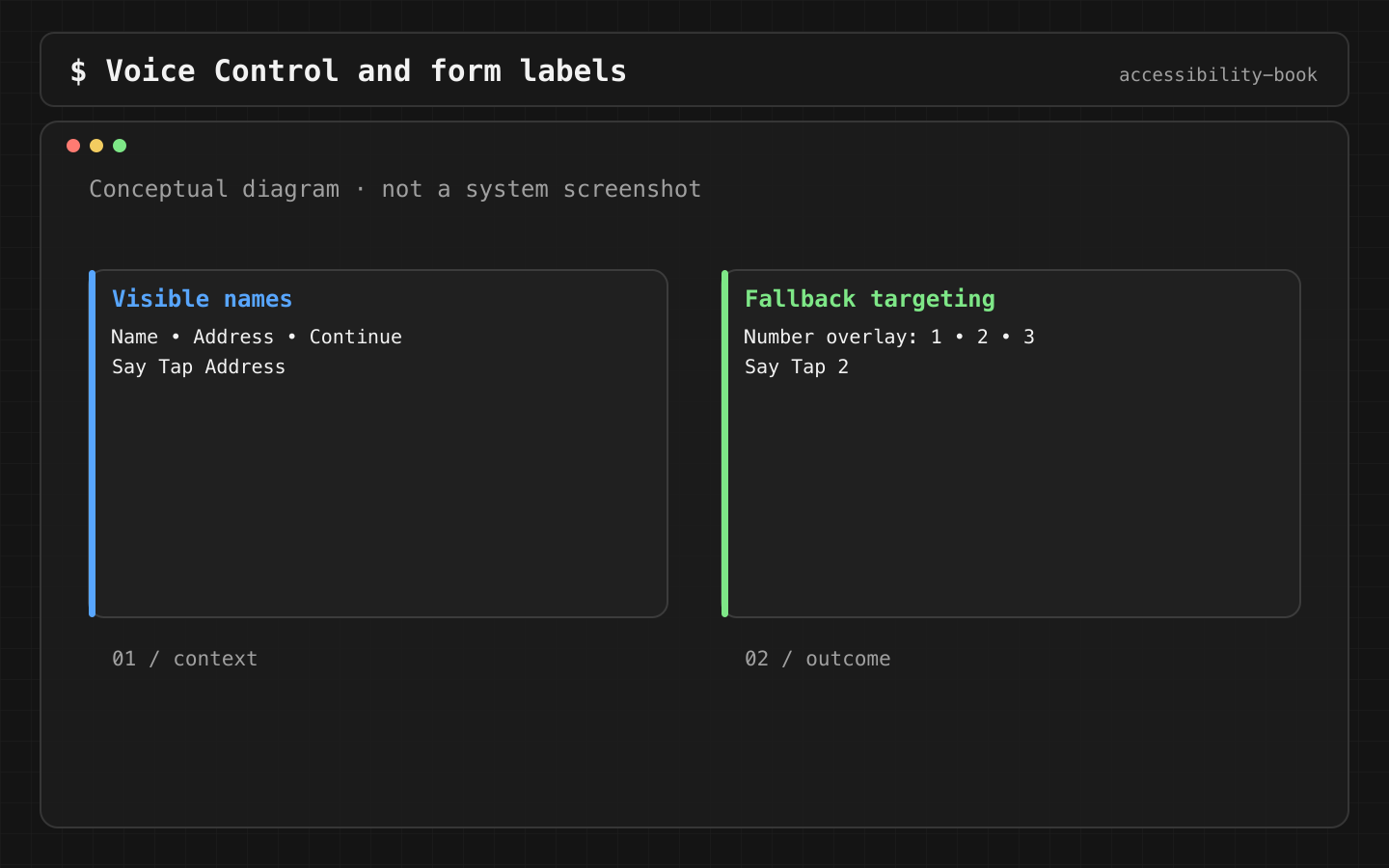
Check: Voice Control on, say "Show names". Every name on screen is unique, and each one matches the visible text.
Decision 5: Voice is never the only input
Verdict: anything the user can do by voice, they can also do by touch or text.
Cases that come up:
- Support by phone only. Add chat or email. People who are deaf or hard of hearing, or who have a speech disability, often can't use a phone call.
- Voice verification or voice search only. Add a text field.
- A Siri shortcut as the only route to a feature. Add a button in the app.
iOS supports speech access at the system level: Live Speech types text and speaks it in calls, Personal Voice creates a synthetic copy of the user's voice, Listen for Atypical Speech improves recognition for users with conditions like ALS or cerebral palsy. These help the user talk to the system. They don't make a voice-only feature in your app accessible.
Check: every feature with a microphone button also has a text input or a button path.
Review prompt
Review this flow for: information only in audio, video without a caption track,
missing transcript, sound-only feedback, voice-only input, duplicate
Voice Control names. Give the element and the fix for each.
The answer is a list of candidates. Captions and Voice Control names are confirmed on a device.
What we don't do
- We don't draw captions over video as text in production.
- We don't count Live Captions as our captions.
- We don't use a sound or a haptic as the only confirmation.
Platform notes
- SwiftUI / UIKit:
VideoPlayer,AVPlayerViewControllerfor system captions.MediaAccessibilityfor custom players.accessibilityInputLabelsfor Voice Control. - AppKit:
AVPlayerViewshows captions the same way. Captions and transcript must also be reachable from the keyboard and the menu bar.
Related catalog entries
- Audio Only Task: task meaning exists only in audio.
- Duplicate Voice Command: repeated controls can't be named.
- Captioned Media: captions, transcript, media controls.
- Icon Button Label: names for icon buttons.
- Voice Control label audit: guide.
Chapter takeaway
Every sound has a visual twin, every voice input has a touch path, every video has a caption track. Visible names are the Voice Control interface.
Sources
- Apple Human Interface Guidelines: Accessibility
- Apple Support: Hearing accessibility features on iPhone
- Apple Support: Speech accessibility features on iPhone
- Apple Developer: Media Accessibility
- Apple Developer: Selecting subtitles and alternative audio tracks
- Apple Developer: accessibilityInputLabels
- Apple Human Interface Guidelines: Playing video
- Apple Human Interface Guidelines: Playing haptics