14. AI in accessibility testing
Status: draft
Chapter goal
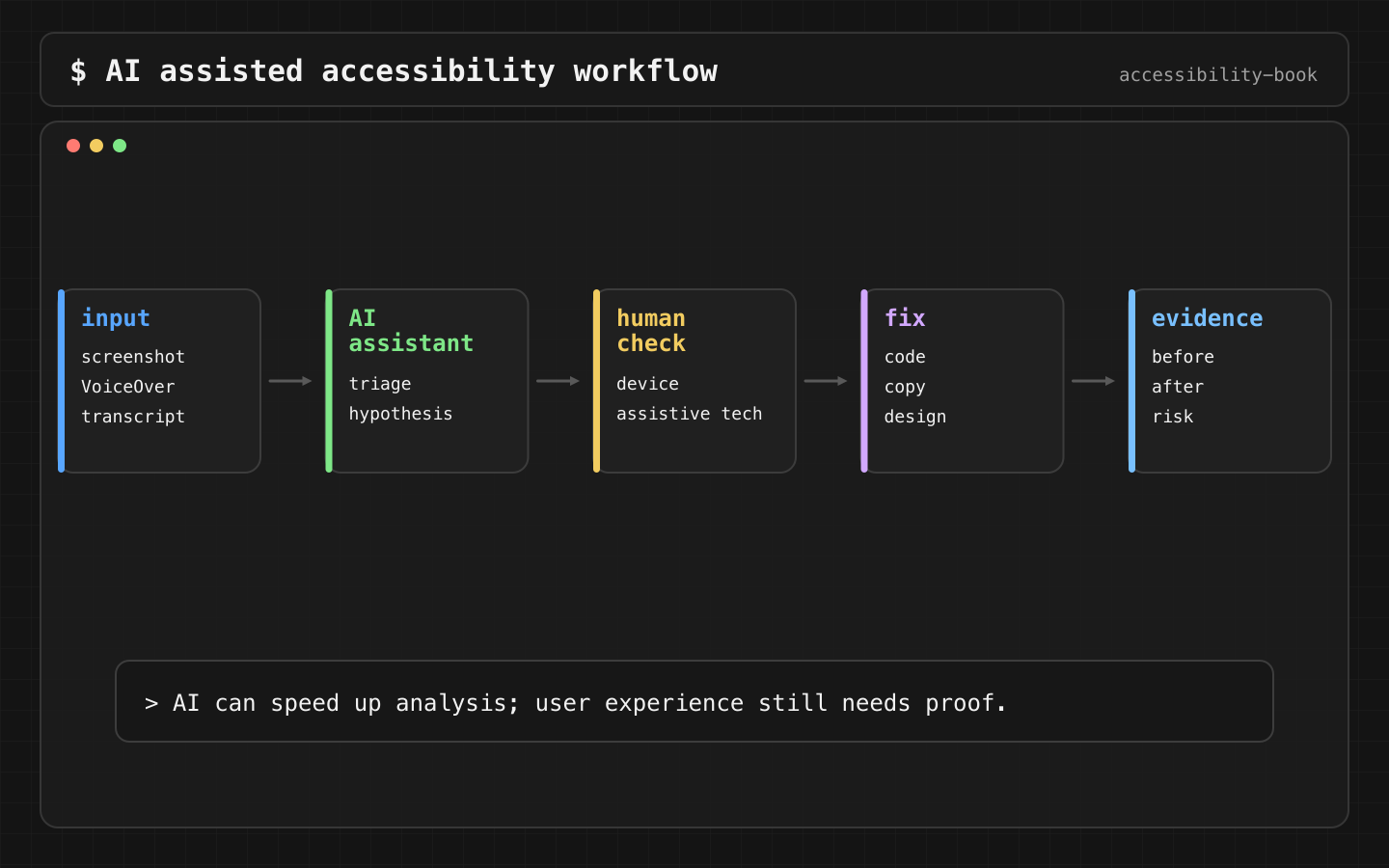
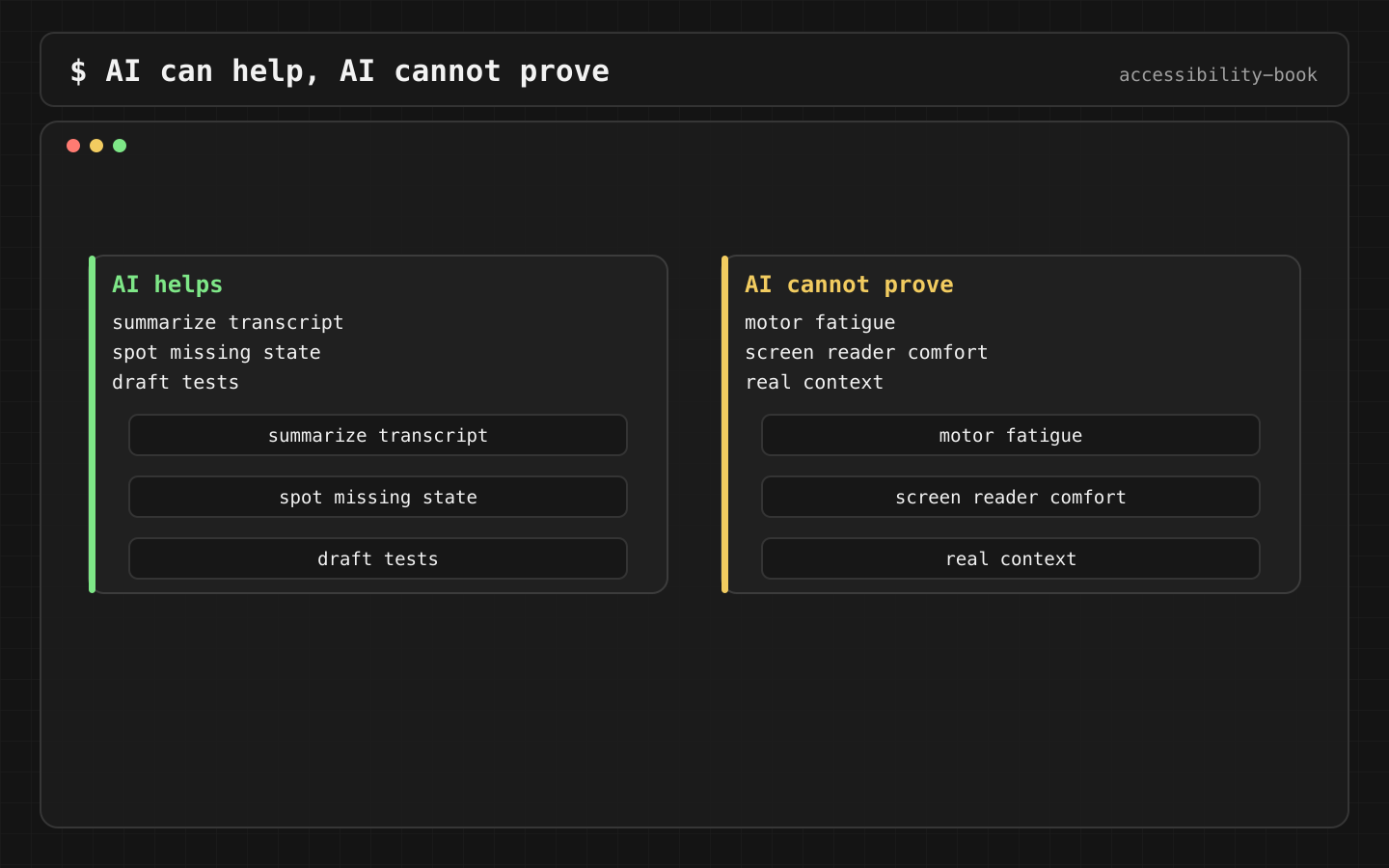
AI speeds up three things: finding risks before testing, reading transcripts after testing, and turning findings into clear reports. It doesn't prove anything about how the app behaves with VoiceOver, Switch Control or Dynamic Type. This chapter covers where AI fits, how to prompt it with enough context, and how to keep its guesses from turning into release evidence.
The situation
The team has a checkout screenshot, the user story and a VoiceOver transcript. Before PR review, it wants a list of likely problems.
The fast way is to paste the screenshot and ask "is this accessible?". The answer is fluent, confident and generic: "ensure all buttons have labels, check color contrast, support Dynamic Type". None of it is wrong, and none of it is specific to the screen. When an answer like this is attached to a ticket as proof, that's AI Verification Theater.
What AI can and can't see
| Input | AI can tell | AI can't tell |
|---|---|---|
| Screenshot | Clipped text, small icons, color-only states, crowded layouts | Labels, traits, focus order, what VoiceOver says |
| Code | onTapGesture on Text, icons without titles, fixed frames, missing actions |
Runtime tree, effect of modifiers combined, UIKit inside SwiftUI |
| VoiceOver transcript | Missing names, wrong order, noise, unclear errors | Whether focus moved by itself or the tester moved it |
| Accessibility Inspector export | Labels, traits, frames per element | Whether the task can be completed |
The pattern: AI is good at spotting a known bug shape in what it's given. It can't observe behavior it wasn't given.
Constraints
- No personal data in prompts unless the tool is approved for that data class. Screenshots and transcripts often contain names, addresses and card numbers.
- Every AI finding has a status: likely, verified, rejected. Only verified findings go into release evidence.
- AI doesn't set severity alone. Severity depends on the task and the product, Chapter 16.
Decision 1: Prompt with task, profiles and expected output
Verdict: the prompt says what the user is trying to do, with which settings, and what format to return.
Screen:   checkout, after a declined card
Task:     update the card and pay
Profiles: VoiceOver, Larger Text AX5, Voice Control, Switch Control
Return:   for each profile, the step that is likely to block the task,
          the probable code cause, and the manual check that confirms it.
Why: "check accessibility" gets a checklist. A task with profiles gets a list of specific steps that can fail, each with a check. The answer can be acted on.
Decision 2: Give it what the user actually heard
Verdict: a VoiceOver transcript is the best input for AI review. Pair it with the expected output.
Expected (written before implementation):
  Card declined. Try another card.
  Card number, Visa ending 1234, text field
  Pay $2.50, button

Actual (Caption Panel):
  button
  Visa ending 1234
  button
  Payment failed

Task: understand the failure, change the card, pay.
Explain each difference and the likely SwiftUI cause.
Why: the diff between expected and actual is the bug list. AI is fast at explaining each line: an unlabeled icon button, a field without a label, an error without a next step. Every explanation is still a hypothesis until the fix is checked.
One limit: a transcript doesn't show how focus got somewhere. If the tester swiped to the error, the transcript looks the same as if focus moved there automatically. Write down how the transcript was recorded (Chapter 13, Decision 2).
Decision 3: Anonymize before sending
Verdict: replace personal data before anything goes to a tool that isn't approved for it.
Anna Petrova       → <name>
4242 4242 4242 4242 → <card>
12 Oak Street      → <address>
Type 2 diabetes    → <medical detail>
Why: accessibility artifacts are full of real data. A screenshot of a health form or a transcript of a banking screen is sensitive data, even when the purpose is testing. Use demo accounts for captures where possible.
Decision 4: Every finding has a status
Verdict: AI findings are tracked as hypotheses until a device or a tool confirms them.
Finding:   filter chips likely missing selected state
Source:    AI review of screenshot + code
Status:    likely
Check:     Accessibility Inspector on chip → trait "Selected" present?
Result:    verified missing → ticket LEAF-412
Why: without a status, "AI says probably" becomes "known issue" in two meetings, and "fixed" in four, without anyone checking. The status keeps track of what was actually seen. Format: Testing Evidence Record.
Screen Recognition is not a fix
VoiceOver has Screen Recognition: on-device machine learning that detects buttons and text in apps that don't expose them. It's a fallback for users stuck in inaccessible apps. It guesses, it can be wrong, and the user has to turn it on. An app that "works with Screen Recognition" isn't accessible. The same rule applies to any AI that reads the screen for the user.
Where AI is useful
- Before testing: expand the checklist for a specific screen. Find code patterns:
onTapGesture, fixed frames, unlabeled icons. - During testing: explain a confusing transcript, suggest the likely cause.
- After testing: turn notes into a bug report with the blocked task in the title. Rewrite error messages to be specific (Chapter 9).
- In review: check a PR diff for the patterns listed in Chapters 10 and 11.
What we don't do
- We don't attach an AI answer as release evidence.
- We don't accept AI-generated labels without listening to them in context.
- We don't send unredacted screenshots of real user data to unapproved tools.
Related catalog entries
- AI Verification Theater: AI output treated as proof.
- Scanner Theater: the same mistake with automated tools.
- AI Assisted Triage: AI for discovering risks.
- Testing Evidence Record: turning findings into verified work.
Chapter takeaway
AI suggests, tools measure, people decide. Give it the task, the profiles and the transcript. Track every finding as likely until it's confirmed.