VoiceOver gestures for screen review
Status: draft
When to use this guide
The screen has labels and still feels broken with VoiceOver: focus jumps, a swipe action is unreachable, a sheet can't be dismissed, the order fights the task, or QA can't reproduce a bug reliably. This is the gesture reference for product, design, developers and QA reviewing a screen.
How VoiceOver navigation works
With VoiceOver on, ordinary touch changes. The user moves the VoiceOver cursor through the accessibility tree, hears the label, value, traits and sometimes the hint, then activates the element.
Touch:      see the button → put a finger on it → tap
VoiceOver:  swipe right → hear the element → understand its state → double tap
Verdict: a screen is ready when the task can be completed with swipe right, swipe left, double tap, the rotor and named custom actions. Nothing else.
Why: that's the minimum set every VoiceOver user knows. A task that needs anything more (exploring by touch to find a button, a custom gesture) is a task many users won't complete.
Gestures for a review
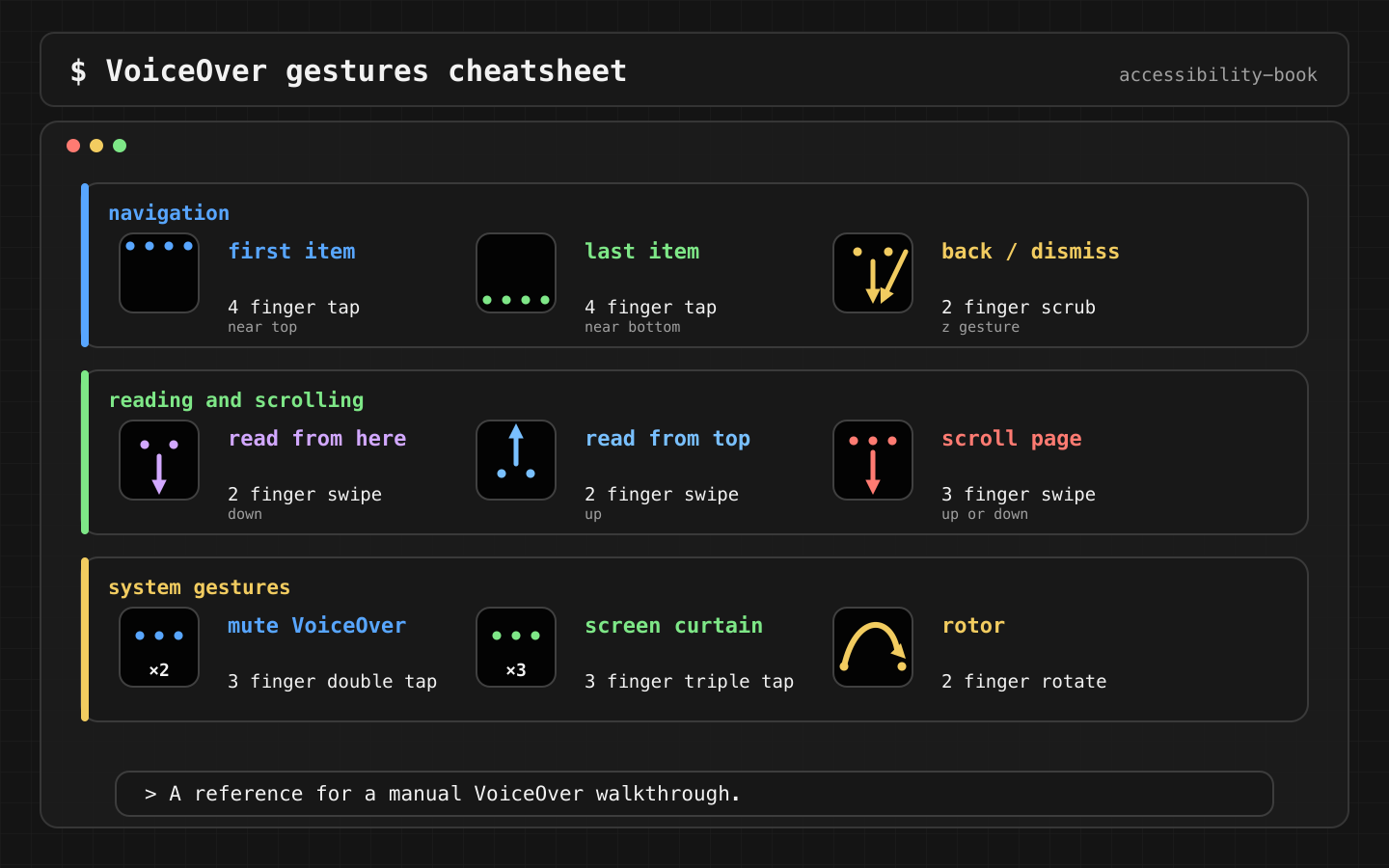
| What to check | Gesture | Expected |
|---|---|---|
| Next element | Swipe right | The order follows the task |
| Previous element | Swipe left | Going back doesn't lose context |
| Activate | Double tap | Same as a regular tap |
| First element | Four-finger tap near the top | Focus starts on meaningful content |
| Last element | Four-finger tap near the bottom | The footer and the main button are reachable |
| Read all from the top | Two-finger swipe up | The screen reads as a coherent sequence |
| Read from here | Two-finger swipe down | Reading resumes after an interruption |
| Scroll a page | Three-finger swipe up or down | Content scrolls, no custom gesture trap |
| Back or dismiss | Two-finger scrub (a "Z") | Sheets, alerts and modals have an exit |
| Rotor | Two-finger twist | Headings, links, actions and adjustable controls make sense |
Two to know before a review: three-finger double tap mutes speech, three-finger triple tap turns on Screen Curtain (the screen goes black). With Zoom on, some gestures change. When unsure, check on a device against Apple's gesture list, not from memory.
A walkthrough
- Turn on VoiceOver.
- Open the screen. Don't touch visual targets.
- Swipe right to the first actionable element.
- Check that the heading, context and state come before the action.
- Continue to the error or the main button.
- Double tap.
- Check where focus goes after an error, a load, a sheet or a success.
A well-structured checkout:
Checkout, heading
Delivery address, text field
Card number, text field
Pay $24.90, button
A broken one:
button
image
text field
invalid
button
The second may technically have labels. The task is still unclear.
Visual order and VoiceOver order
They often match. They don't have to. The VoiceOver order follows how a person completes the task: context, input, action.
// Before: the action is read before its context
VStack {
    Button("Apply") { apply() }
    Text("Promo code")
    TextField("Code", text: $code)
}

// After
VStack {
    Text("Promo code")
    TextField("Code", text: $code)
    Button("Apply") { apply() }
}
If the layout can't change, set the order explicitly. UIKit:
container.accessibilityElements = [titleLabel, codeField, applyButton]
Switch Control and Full Keyboard Access follow the same order. Reading Order Drift, Reading Order Contract.
Custom gestures
With VoiceOver on, a one-finger swipe moves between elements. It never reaches the app's own swipe. A custom swipe is unreachable unless the same action exists another way.
// Before: the drag is the only way to archive
OrderCard(order)
    .gesture(DragGesture().onEnded { _ in archive(order) })

// After: the drag stays, the action is also in the Actions rotor
OrderCard(order)
    .gesture(DragGesture().onEnded { _ in archive(order) })
    .accessibilityAction(named: "Archive") { archive(order) }
UIKit:
cell.accessibilityCustomActions = [
    UIAccessibilityCustomAction(name: "Archive") { [weak self] _ in
        self?.archive(order)
        return true
    }
]
Frequent actions are visible buttons. Secondary actions can be custom actions. Destructive ones get specific names and a confirmation. System swipeActions in a List are already in the Actions rotor, so they don't need a duplicate.
Swipe Trap, Gesture Alternative, Rotor and custom actions, Adjustable controls.
System gestures
Some conflicts affect touch users too. A horizontal date scroller at the bottom edge triggers app switching or Reachability when the finger drifts. The screen moves and the task is interrupted.
HStack {
    Button("Previous day", systemImage: "chevron.left") { moveDay(-1) }
    DateScroller(selection: $date)
    Button("Next day", systemImage: "chevron.right") { moveDay(1) }
}
.labelStyle(.iconOnly)
.safeAreaPadding(.bottom, 16)
1. One hand, drag near the bottom edge: no Reachability, no app switch.
2. VoiceOver: choose a date without dragging.
3. Larger Text AX5: the control stays above the Home indicator.
4. Switch Control: the date changes with the buttons.
Edge Gesture Collision, System Gesture Safe Zone.
Focus after an error
// Before: the error appears, focus stays on Pay, the user keeps double-tapping
if let cardError {
    Text(cardError)
}
// After: focus moves to the error after a failed submit
@AccessibilityFocusState private var errorFocused: Bool

if let cardError {
    Text(cardError)
        .accessibilityFocused($errorFocused)
}

Button("Pay") {
    cardError = validate(card)
    errorFocused = cardError != nil
}
UIKit:
UIAccessibility.post(notification: .layoutChanged, argument: errorLabel)
Switch Control benefits too: scanning continues from the error, not from the top. Focus Black Hole, Focus Recovery. Exact speech: VoiceOver output debugging.
On a device
- Turn on VoiceOver from Settings or the Accessibility Shortcut (triple-click the side button).
- New to it? VoiceOver Practice in Settings lets you try gestures without triggering anything.
- Set a speech rate the team can follow.
- Complete the core task with swipe right, swipe left, double tap, three-finger scroll and the rotor only.
- Turn on the Caption Panel and screenshot the speech.
- For each blocker, record the gesture, the expected and actual speech, the screen state, the device and the iOS version.
- Repeat with Larger Text, Reduce Motion and Differentiate Without Color if the screen depends on layout, animation or color.
A specific bug report:
Screen:         checkout
Gesture:        swipe right from "Card number"
Expected:       "Expiration date, text field"
Actual:         "Pay $24.90, dimmed, button"
Impact:         the user skips a required field and can't tell why Pay is dimmed
Fix direction:  put the field before Pay, keep Pay enabled, focus the first error on submit
Inspector and automation
After the walkthrough, Accessibility Inspector shows why VoiceOver reached the wrong element:
1. Select the element VoiceOver reached.
2. Check label, value, traits, actions.
3. Check the hierarchy when the order is wrong.
4. Run the audit for obvious issues.
Automation guards against regressions:
try app.performAccessibilityAudit(for: [.sufficientElementDescription, .hitRegion])
It won't notice that Pay takes 25 swipes to reach unless the task is modeled and recorded. Accessibility testing toolkit.
What we don't do
- We don't call a screen ready because every element has a label. The task is the test.
- We don't make a custom gesture the only way to do something.
- We don't file "VoiceOver is broken" without the gesture and the actual speech.
Related materials
- Chapter 3: interaction models.
- Chapter 5: VoiceOver in practice.
- Swipe Trap: actions available only as gestures.
- Reading Order Drift: an order that breaks the task.
- Focus Black Hole: the screen changes, focus doesn't.
- Focus Recovery: take the user to the error.
- Accessible Card: a card as one unit.
- Gesture Alternative: visible button, menu or custom action.
- Accessibility testing toolkit: Inspector, audit, snapshots, evidence.
Sources
- Apple Support: Use VoiceOver gestures on iPhone
- Apple Support: Turn on and practice VoiceOver on iPhone
- Apple Support: Operate iPhone when VoiceOver is on
- Apple Support: Customize VoiceOver gestures and keyboard shortcuts
- Apple Human Interface Guidelines: Accessibility
- App Store Connect Help: VoiceOver evaluation criteria
- Apple Developer: Accessibility Inspector