VoiceOver output debugging
Status: draft
When to use this guide
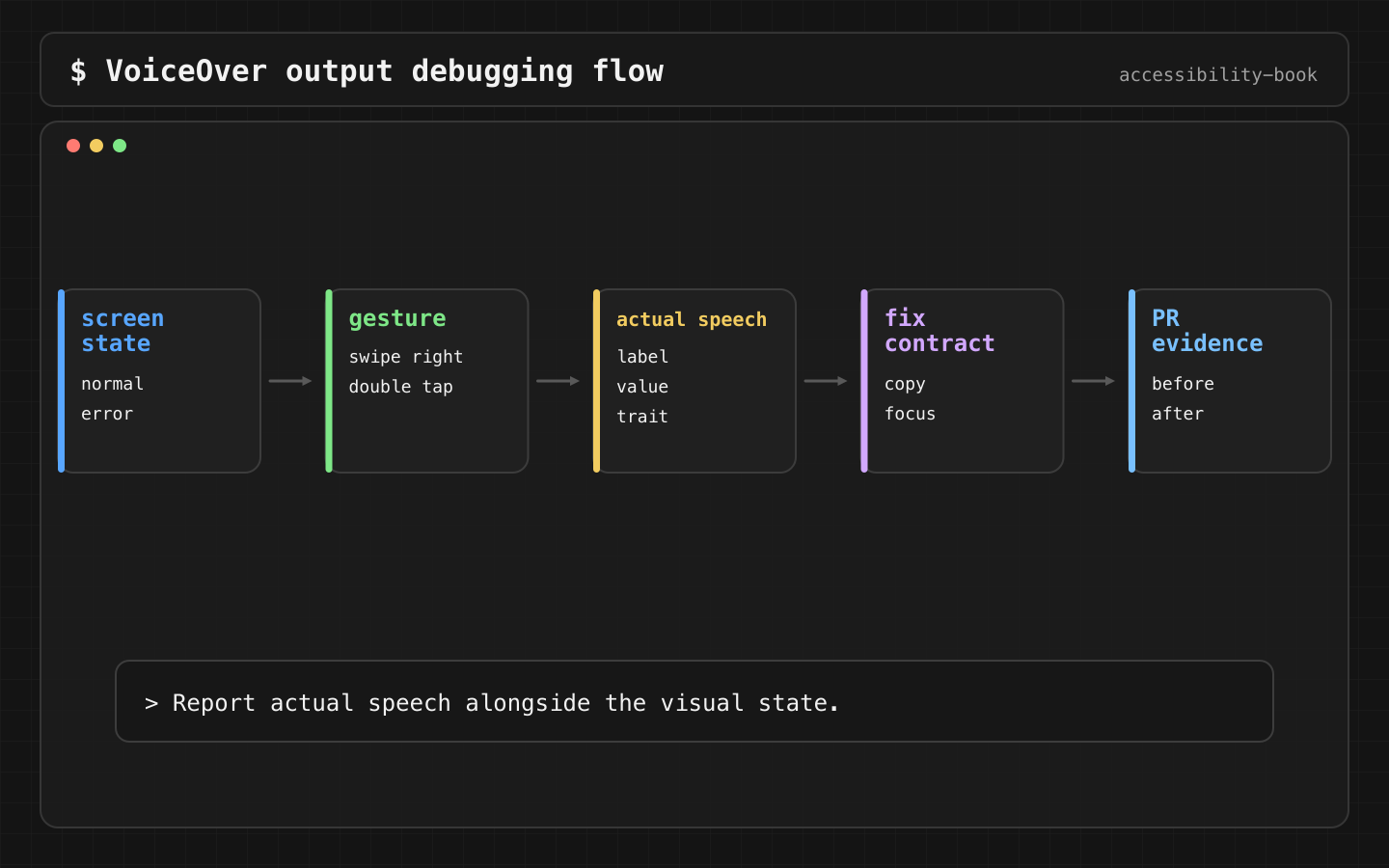
The screen looks fine and QA says "VoiceOver reads it strangely". This guide shows how to capture what VoiceOver actually says, find the broken part of the accessibility tree, and put reproducible evidence in the bug or the PR.
What VoiceOver says
VoiceOver reads one element at a time: label, value, traits, and, if hints are on, the hint. That phrase has to make sense without seeing the screen.
A bug report needs four lines:
Screen:    checkout
Gesture:   swipe right from "Card number"
Actual:    "Invalid, text field"
Expected:  "Card number, Card number is incomplete. 4242 42, text field"
The developer knows exactly which element to fix and what it should say.
Capture the actual speech
Verdict: turn on the Caption Panel and screenshot it. Don't write speech down from memory.
Why: memory paraphrases. The Caption Panel shows exactly what was spoken, in the same screenshot as the focused element.
Settings → Accessibility → VoiceOver → Caption Panel. It's separate from video subtitles and Live Captions.
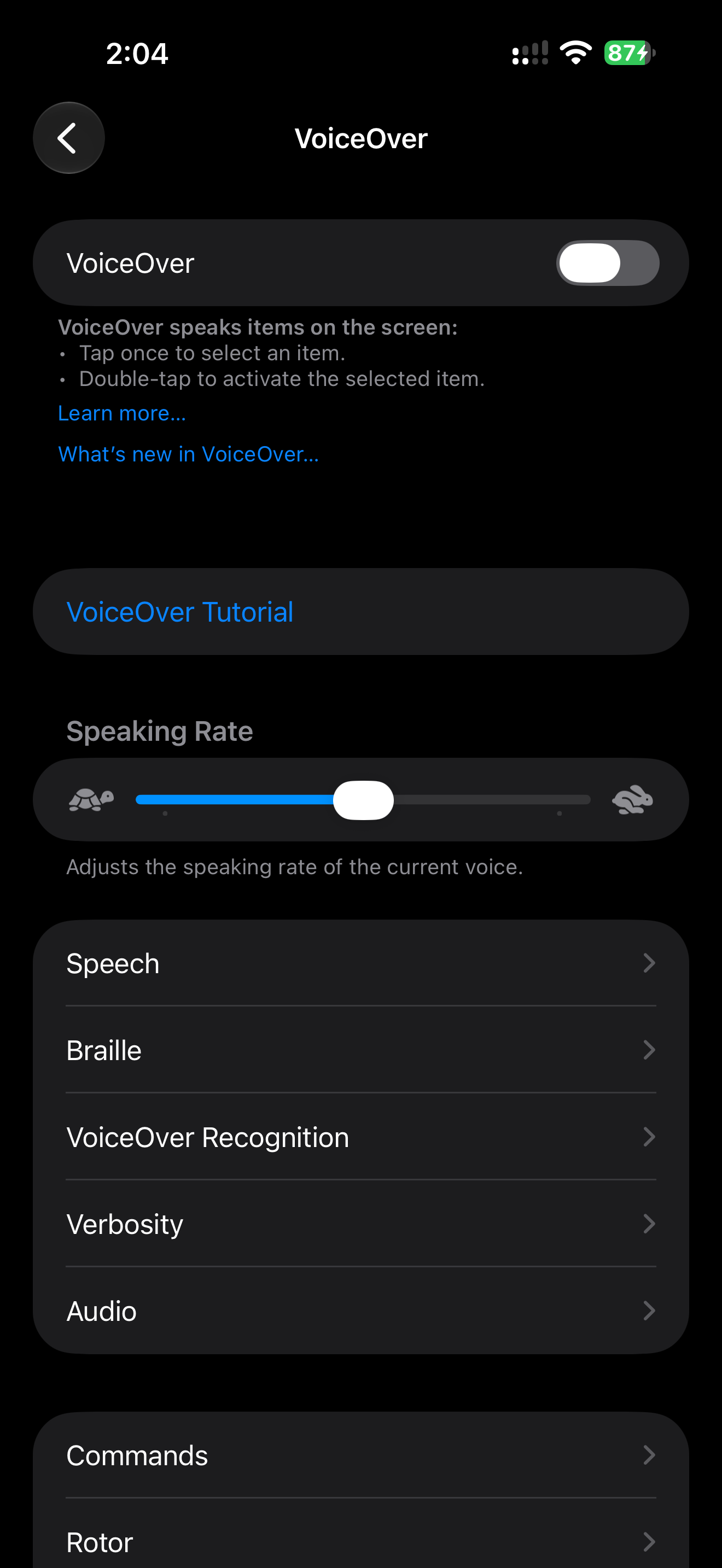
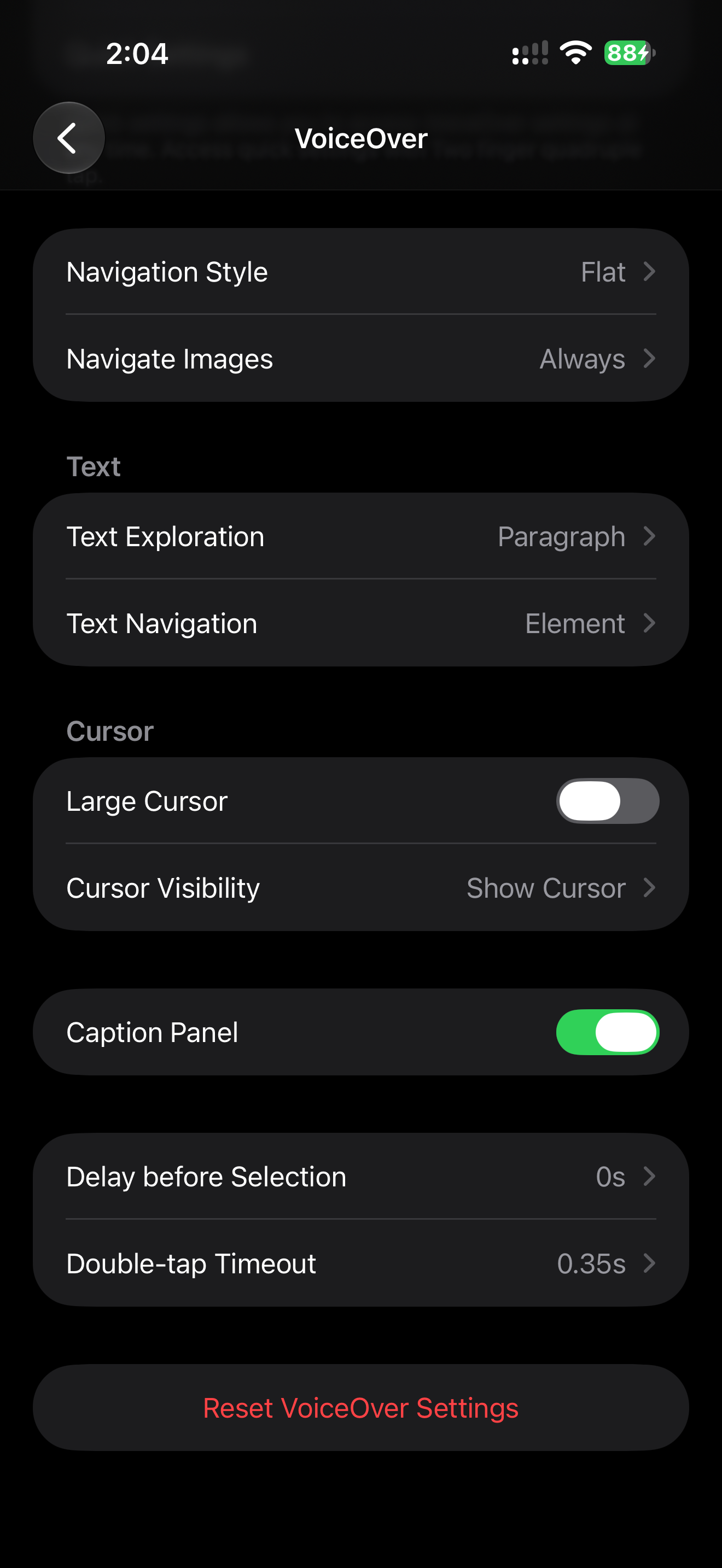
On iOS 27, XCTest can record the speech too, with XCUIVoiceOverService. The book's recorded transcripts were captured this way. Chapter 13, Decision 2.
Manual walkthrough
- Turn on VoiceOver.
- Move only with swipe right, swipe left and double tap.
- Record the speech in each state: default, error, loading, selected, disabled.
- Compare it with what the user needs to know to continue.
- Write the four-line report.
Checking only that accessibilityLabel exists isn't enough. Most broken speech is in states other than the default.
Fix
Verdict: the name in the label, the changing state and the error in the value, the role from the trait. A hint only when the next step isn't obvious.
Why: that's the order VoiceOver reads in, and each part has one job. Hints can be turned off, so nothing essential goes there.
SwiftUI:
TextField("Card number", text: $card)
    .accessibilityLabel("Card number")    // a filled field may read only its value without it
    .accessibilityValue(cardError.map { "\($0). \(card)" } ?? card)
UIKit:
cardField.accessibilityLabel = "Card number"
cardField.accessibilityValue = cardError.map { "\($0). \(cardField.text ?? "")" }
The error text says what to do ("Card number is incomplete"), not a rule that's wrong for some cards ("Enter 16 digits": American Express has 15).
An error next to a field is text, not an icon:
// Before: VoiceOver reads "Invalid" with no context, the icon is "exclamation mark circle"
Image(systemName: "exclamationmark.circle")
Text("Invalid")

// After
Label("Card number is incomplete", systemImage: "exclamationmark.circle")
After a failed submit, focus goes to the error: Focus Recovery.
Inspector and automation
Accessibility Inspector (Xcode → Open Developer Tool) shows the raw values. Select the element and check label, value, traits, frame and actions. If the values are right and the walkthrough still fails, the problem is the order, the focus after a change, or the wording.
1. The element has the expected label, value and traits.
2. Actions include the expected custom actions.
3. The hierarchy explains why this element is reached at this point.
XCTest audit as a guardrail on stable screens:
try app.performAccessibilityAudit(for: [.sufficientElementDescription, .trait])
Expected speech for reusable cells, written next to the component:
Order 1042, Delivered, $24.80
Reorder order 1042, button
What we don't do
- We don't write "VoiceOver reads it wrong" without the actual speech.
- We don't record a 5-minute screen video instead of the four lines.
- We don't add a hint to every element.
Related materials
Chapter 5, Chapter 13, Label Soup, Silent Error, Meaningful Announcement, Testing Evidence Record, Accessibility testing toolkit, Voice Control label audit.
Sources
Apple Support: Use VoiceOver gestures on iPhone, Apple Support: Change your VoiceOver settings, Apple Developer: Accessibility Inspector, Apple Developer: Performing accessibility audits for your app, Apple HIG: Accessibility.