Accessibility testing toolkit
Status: draft
When to use this guide
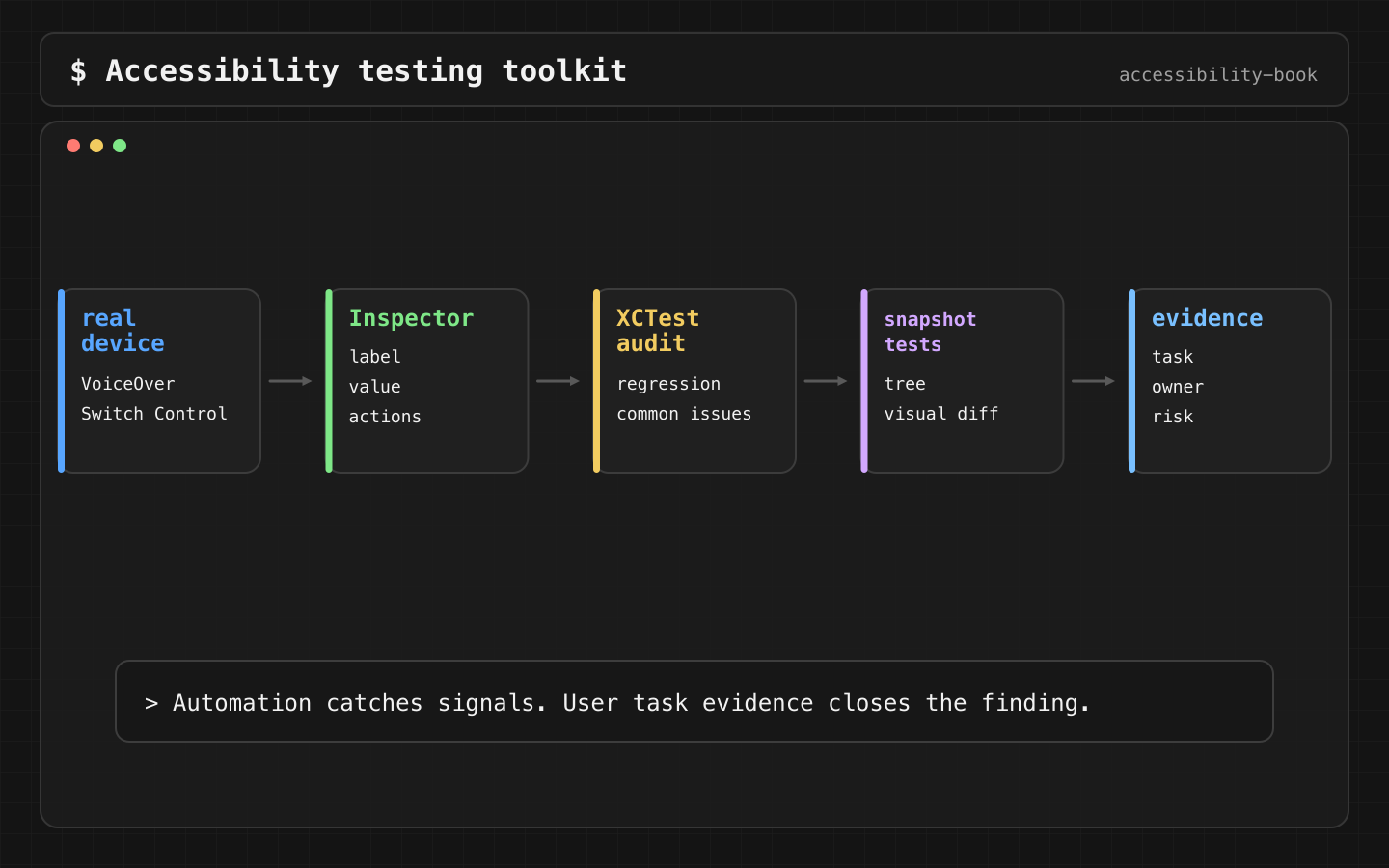
The team added labels, actions, Dynamic Type support and focus handling, and now asks how to check it without fooling itself. This is the short toolkit: a walkthrough on a device, Accessibility Inspector, the XCTest audit, snapshot tests, UI tests and an evidence record.
The rule
Verdict: a tool finds a signal. Proof is the signal tied to a user task, checked on a device.
Why: "button has no name" is the same tool message on a decorative icon and on Pay. Only the task tells them apart.
Tool finding:  button has no accessible name
Task impact:   a VoiceOver user can't submit the payment
Evidence:      actual speech, screenshot, device, iOS version
Owner:         checkout team
That's the line between testing and Scanner Theater.
| Tool | Catches | Misses | When |
|---|---|---|---|
| Device walkthrough | Whether the task can be completed | Regressions between runs | Critical flows, before release |
| Accessibility Inspector | Labels, traits, frames, actions, hierarchy | Whether the order makes sense | While debugging |
| XCTest audit | Missing names, contrast, hit regions, clipped text | Focus after changes, task flow | Every PR |
| Snapshot tests | Changed labels, grouping, hierarchy | Wording, fatigue, timing | Every PR, components |
| VoiceOver UI tests (iOS 27+) | Actual speech and focus | Anything not scripted | Critical focus behavior |
Walkthrough on a device
Gestures, speech, haptics, Switch Control timing and the fatigue of 40 swipes only exist on a real iPhone or iPad.
Profile:   VoiceOver
Task:      recover from a declined card
Steps:     open checkout, pay with a declined card, fix, pay again
Expected:  focus on the error after Pay, the card field keeps its value
Evidence:  transcript + Caption Panel screenshot
Accessibility Inspector
Xcode → Open Developer Tool → Accessibility Inspector. It shows and tests the accessibility information of elements in the running app.
Inspected element:  label, value, traits, frame, activation point
Actions:            activate, scroll, custom actions
Hierarchy:          where the element lives and why VoiceOver reaches it now
Good for debugging why VoiceOver says "button", why an action is missing, why focus takes a strange path. It doesn't know what the product means, so it doesn't replace the walkthrough.
XCTest audit
performAccessibilityAudit(for:_:) on XCUIApplication audits the current screen like the Inspector's audit does. Any issue the closure doesn't ignore fails the test.
func testCheckoutAccessibilityAudit() throws {
    let app = XCUIApplication()
    app.launch()
    openCheckout(in: app)

    try app.performAccessibilityAudit { issue in
        // Return true only for triaged exceptions. Everything else fails the test.
        // Decorative divider, contrast reviewed in ACC-112.
        issue.auditType == .contrast && issue.element?.identifier == "checkout.divider"
    }
}
The closure returns true for issues to ignore. A closure that returns true for everything turns the test into one that can never fail. Every exception has a comment with the reason and a ticket.
Good for: stable screens, regression checks, the CI gate. It won't understand the product copy and won't prove that the order makes sense for the task.
Snapshot tests
An accessibility snapshot records the accessibility hierarchy with a visual overlay and fails when it changes. Cash App's AccessibilitySnapshot works with swift-snapshot-testing:
import AccessibilitySnapshot
import SnapshotTesting

func testTeaCellAccessibility() {
    let cell = TeaCell()
    cell.configure(with: .jasmine)
    assertSnapshot(of: cell, as: .accessibilityImage)
}
Catches: a changed label, a missing element, broken grouping, a small activation area. Misses: fatigue from 40 swipes, bad wording, Switch Control timing, severity.
When image snapshots are too fragile, keep a text snapshot of the expected speech:
Checkout, heading
Card number, Card number is incomplete. 4242 42, text field
Expiration date, text field
Pay $24.90, button
Less layout noise, good for forms, cells, menus and settings.
UI tests
A UI test checks the task path, not "all labels exist".
func testPaymentErrorKeepsInput() throws {
    let app = XCUIApplication()
    app.launch()
    openCheckout(in: app)

    let card = app.textFields["Card number"]
    card.tap()
    card.typeText("4242 42")
    app.buttons["Pay $24.90"].tap()

    XCTAssertTrue(app.staticTexts["Card number is incomplete"].waitForExistence(timeout: 2))
    XCTAssertEqual(card.value as? String, "4242 42")
}
For focus and speech, use XCUIVoiceOverService on iOS 27 and read currentSpeech() right after the action. Chapter 13, Decision 2.
accessibilityIdentifier is for test code. accessibilityLabel is for the user. Don't use one as the other.
Evidence record
Task:      change the delivery time
Profile:   Voice Control
Result:    fail
Actual:    three controls named "Edit"
Expected:  Edit address, Edit payment, Edit delivery time
Evidence:  screenshot with "Show names"
Owner:     checkout team
Next:      rename and re-check
Format: Testing Evidence Record.
What we don't do
- We don't return
truefrom the audit closure for every issue. - We don't count a passing audit as a passing task.
- We don't write UI tests that only check that elements exist.
Related materials
Chapter 13, Chapter 15, Testing Evidence Record, Scanner Theater, AI Verification Theater, VoiceOver output debugging, Voice Control label audit.
Sources
Apple Developer: Accessibility Inspector, Apple Developer: Performing accessibility audits for your app, Apple Developer: performAccessibilityAudit, Apple Developer: XCUIAccessibilityAuditIssue, Cash App AccessibilitySnapshot, Google GTXiLib, Evinced Mobile SDKs.